

There are many ways to boost your internet speed, and I’ve tried most of them on my aging connection, which barely reaches 60Mbps for the whole household. Surprisingly, a minor adjustment made a noticeable difference—and it was incredibly easy to implement.
Why Your Internet Feels Slower Than It Should
Slow internet isn’t always about weak Wi-Fi or ISP throttling. Even with a solid plan and decent router, hidden bottlenecks can drag your speed down:
- ISP vs. real speed: Peak times often deliver less than what you pay for.
- Router placement: Placing the router in corners, cabinets, or behind furniture reduces Wi-Fi range and speed.
- Network congestion: Multiple devices streaming or downloading simultaneously can slow down everyone.
- Outdated settings: Default router and device configurations may limit performance.
Think of your connection like a highway: even the fastest car can be stuck in traffic. This simple tweak clears one of those hidden slowdowns, boosting your speed where it matters most.
Read More: Simple Trick to Change Your IP Without Using a VPN
Change Your ISP’s DNS for Faster Internet
A simple way to improve speed is to replace your ISP’s default DNS with a faster, more reliable alternative.
DNS, or Domain Name System, acts like the internet’s phonebook. When you type a website like makeuseof.com, your device asks a DNS server to translate it into a numerical IP address. Your computer doesn’t read the website name—it relies on this translation to find the correct server.
If your DNS is slow, every page load, game, or file transfer experiences tiny delays, making your internet feel sluggish. Switching to a faster DNS reduces these lookup times, improving responsiveness and page load speed.
While it won’t increase your download speed in megabytes, it makes your internet feel noticeably quicker and more responsive.
Try These DNS Providers for Faster Internet
Wondering how to pick a faster DNS? There are two simple approaches.
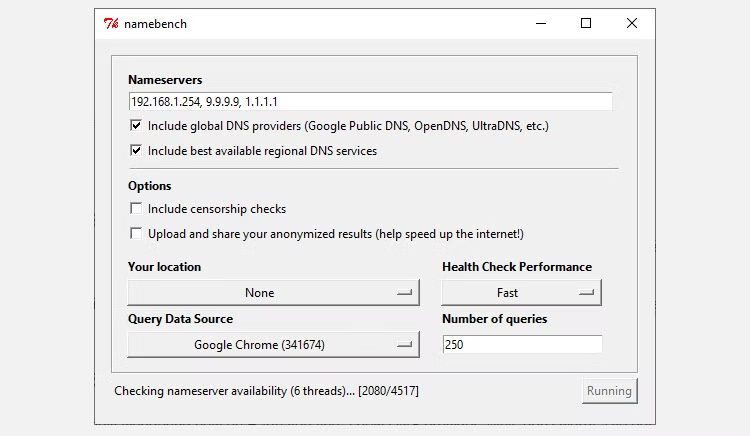
First, you can use a tool like Google’s Namebench on Windows 11. It analyzes your system and generates a list of the fastest DNS providers for your connection. It takes some time, but gives the most accurate results.
Alternatively, you can skip testing and choose from proven, high-performance DNS providers. Popular options include Google DNS, Cloudflare, OpenDNS, and Quad9, all of which are known for their speed and reliability. Here are their addresses:
| Provider | IPv4 | IPv6 |
|---|---|---|
| Google DNS | 8.8.8.8, 8.8.4.4 | 2001:4860:4860::8888, 2001:4860:4860::8844 |
| Cloudflare | 1.1.1.1, 1.0.0.1 | 2606:4700:4700::1111, 2606:4700:4700::1001 |
| OpenDNS | 208.67.222.222, 208.67.220.220 | 2620:119:35::35, 2620:119:53::53 |
| Quad9 | 9.9.9.9, 149.112.112.112 | 2620:fe::fe, 2620:fe::9 |
You’ll need these addresses to update your DNS settings in the next step.
How to Change Your DNS Settings
Changing DNS on most devices is simple. First, take a screenshot of your current settings in case you need to revert later.
For Windows 11:
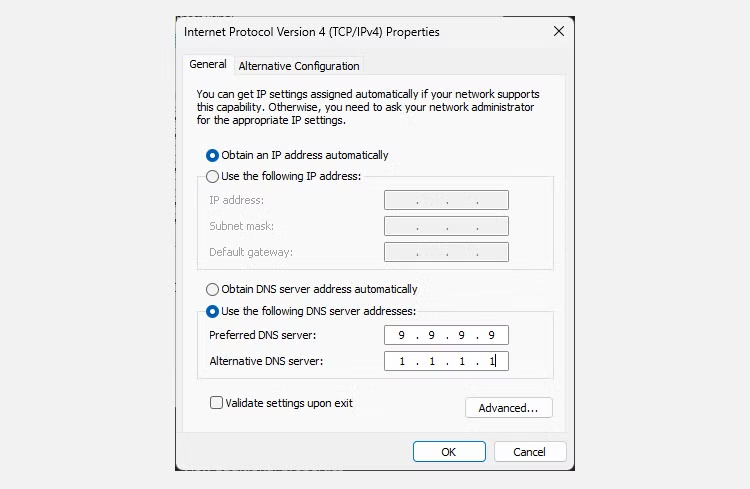
- Press Win + X and select Network Connections.
- Go to Advanced network settings and choose your active network adapter (Wi-Fi or Ethernet).
- Click Edit next to More adapter options.
- Select Internet Protocol Version 4 (TCP/IPv4) → Properties → Use the following DNS server addresses, and enter your chosen IPv4 addresses. Click OK.
- Repeat for Internet Protocol Version 6 (TCP/IPv6) using the corresponding IPv6 addresses. Click OK to save.
- Close the settings window and start browsing with your new, faster DNS.
How to Change Your macOS DNS Settings
Changing DNS on macOS is straightforward:
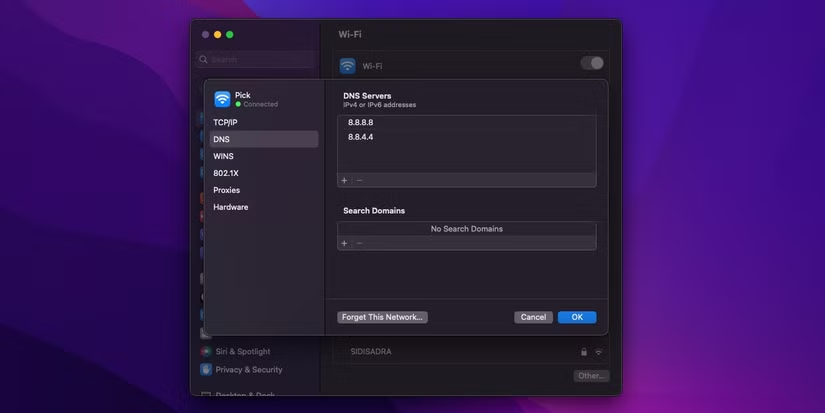
- Open System Preferences and go to Network.
- Select your active network and click Advanced.
- Navigate to the DNS tab.
- Use the + and – buttons to add or remove DNS servers. Enter the IP addresses of your preferred provider.
- Confirm your changes to start using the new DNS immediately.
How to Change Your DNS Settings on Linux
DNS settings on Linux vary by distro and can be changed via the user interface or the command line. Covering every distro would be overwhelming, but you can easily update DNS on GNOME, KDE, Ubuntu, or through the terminal, depending on your setup.
How to Change Your iPhone DNS Settings
Changing DNS on an iPhone is simple:
- Open Settings > Wi-Fi.
- Tap the “i” icon next to your connected network.
- Scroll to the DNS section and select Configure DNS.
- Switch from Automatic to Manual.
- Tap Add Server and enter the IP addresses of your preferred DNS provider.
- Tap Save to apply the changes.
How to Change Your DNS Settings on Android
Steps may vary by device, but for stock Android 9.0 and above:
- Go to Settings > Network & Internet.
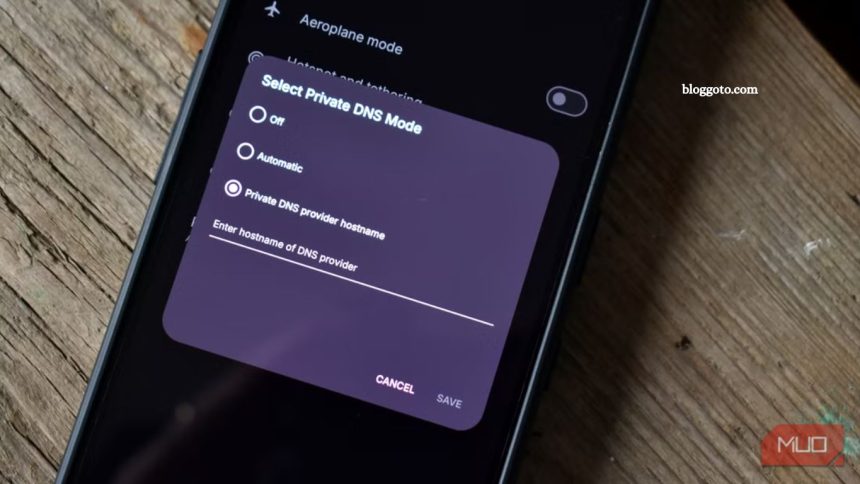
- Expand Advanced settings and locate Private DNS. By default, it’s set to Automatic.
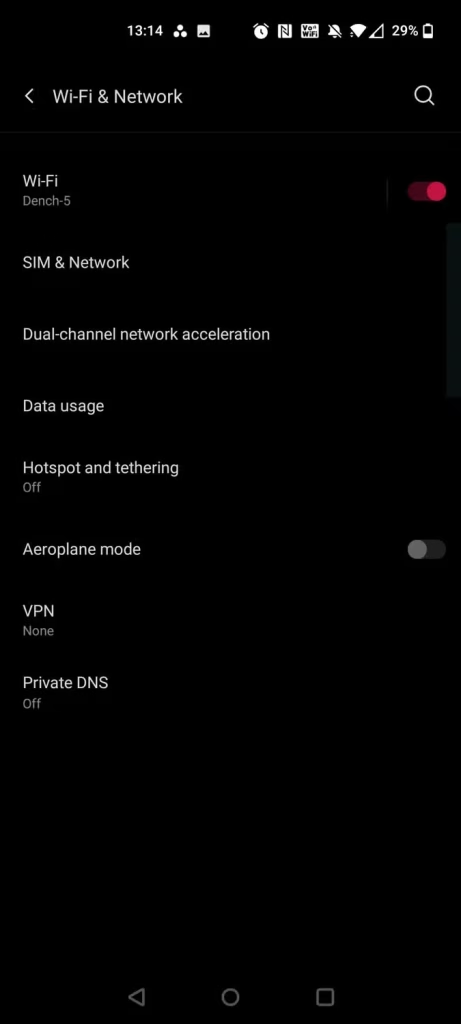
Select the Private DNS provider hostname and enter your DNS provider’s hostname:
- Google DNS: dns.google.com
- Cloudflare: 1dot1dot1dot1.cloudflare-dns.com
- OpenDNS: doh.opendns.com
- Quad9: dns.quad9.net
Confirm your changes, and your device will start using the new DNS settings.
How to Change Your DNS Settings on Chrome OS
Chromebooks run Chrome OS, a fast, web-focused system popular in schools and homes. To update DNS:
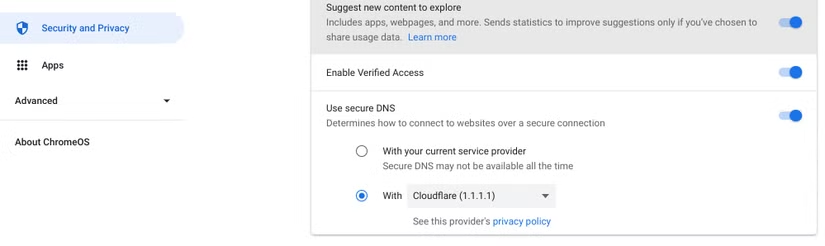
- Open Settings > Security & Privacy.
- Toggle on Use Secure DNS.
- Select With and choose a provider from the dropdown (e.g., Cloudflare 1.1.1.1) or enter a custom DNS.
- Your new DNS will apply to every network your Chromebook connects to.
Frequently Asked Questions
What is a DNS, and how does it affect my internet speed?
DNS (Domain Name System) translates website names into IP addresses. If your DNS server is slow, every page load, stream, or online game can feel sluggish. Using a faster DNS reduces these delays, making your connection feel quicker.
Will changing my DNS increase my download speed?
Changing DNS won’t boost your raw download or upload speeds. Instead, it improves responsiveness, reduces loading times, and makes web browsing feel faster overall.
Which DNS providers are the fastest and most reliable?
Top alternative DNS providers include Google DNS, Cloudflare, OpenDNS, and Quad9. These services consistently rank high in terms of speed and reliability.
Can I change DNS on any device?
Yes. You can update DNS on Windows, macOS, Linux, Chrome OS, iPhone, and Android. Each system has slightly different steps, but the process is generally straightforward.
Is it safe to use a third-party DNS?
Yes. Reputable DNS providers, such as Google, Cloudflare, and OpenDNS, are generally considered secure. Avoid unknown DNS servers, as they may compromise your privacy or security.
Do I need technical skills to change DNS?
No. The process is user-friendly on most devices. Taking a screenshot of your current settings before making changes is a good precaution in case you need to revert.
How quickly will I notice improvements?
Once you apply a faster DNS, page loads, streaming, and general responsiveness should improve immediately.
Conclusion
A minor DNS tweak can make a noticeable difference in how quickly and responsively your internet feels. While it won’t increase your raw download speeds, it reduces delays in loading websites, streaming, and online gaming. By switching to a reliable DNS provider, such as Google DNS, Cloudflare, OpenDNS, or Quad9, you can unlock a smoother and faster online experience across all your devices. Updating your DNS is a simple, safe, and cost-effective way to optimize your connection.