
Monitoring your SSD’s health isn’t just tech jargon—it’s vital for protecting your data. SMART metrics and diagnostic tools reveal early warning signs that predict drive failure. Understanding these numbers today could save you from losing valuable files tomorrow.
Tools I Use to Monitor SSD Health
Most major SSD brands offer their own monitoring software, providing brand-specific insights. Crucial offers Storage Executive, Samsung provides Samsung Magician, Western Digital/SanDisk uses SanDisk Dashboard, and Kingston offers Kingston SSD Manager. These official tools provide features and detailed health data that you won’t find in generic utilities.
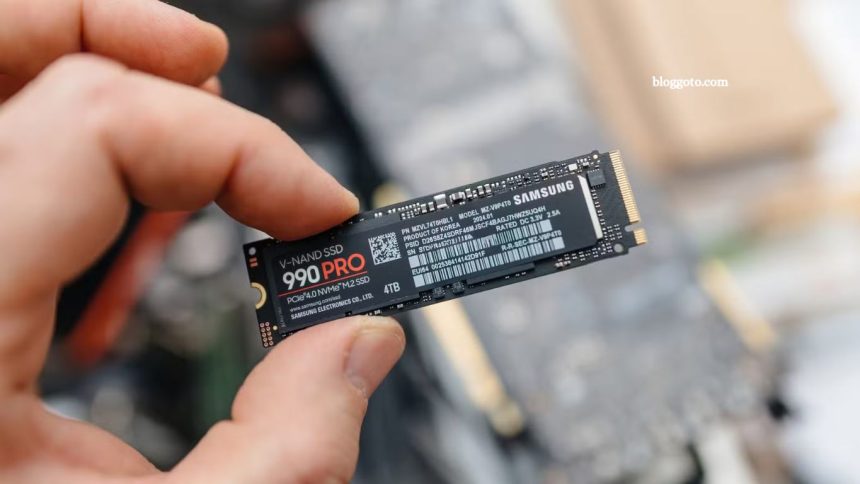
I always install the manufacturer’s software first, since it’s designed for their drives. For my Samsung SSDs, Samsung Magician is my primary tool. It delivers accurate health monitoring, performance benchmarks, firmware updates, temperature tracking, and TBW (total bytes written) tailored to Samsung’s SMART attributes.
For multi-brand systems, I rely on CrystalDiskInfo Standard Edition. This free utility reads SMART data from any SSD and presents it in a simple, color-coded interface. I can instantly see drive health, temperature, and lifespan percentage—green signals excellent health, yellow shows caution, and red warns immediate action.
Together, Samsung Magician and CrystalDiskInfo provide me with reliable, easy-to-use tools for diagnosing SSD health and ensuring optimal performance.
Read More: 8 Common Money Traps for New Homeowners
Understanding SMART Data and Key SSD Health Metrics
SMART (Self-Monitoring, Analysis, and Reporting Technology) provides essential data for evaluating your SSD’s condition. By interpreting these metrics, you can detect early warning signs, prevent failures, and extend your drive’s lifespan.
Wear Level Indicators and SSD Lifespan
One of the most important SMART attributes to monitor is wear level, though each brand labels it differently. In Samsung Magician, it appears as Wear Leveling Count (ID 173), starting at 100 and decreasing toward zero. Western Digital and Seagate list it as “Life Left” or “Remaining Lifetime Percentage,” also counting down from 100% to 0%.
These values reflect the program/erase cycles—the number of times SSD flash cells can be rewritten. For example, my Samsung drive shows 91, meaning about 9% of its lifespan has already been used.
While modern operating systems manage wear leveling automatically, I still rely on Samsung Magician to track TRIM settings and watch wear progression. Monitoring this number helps me plan drive replacements before failure risks increase.
Temperature Monitoring to Prevent SSD Performance Issues
SSD temperature plays a critical role in both performance and lifespan. Most drives operate safely within a temperature range of 30°C to 65°C (86°F–149°F), but as temperatures rise above 70°C, the risks of throttling and data loss increase.
My Samsung SSD idles at 43°C, well within the safe range. Using CrystalDiskInfo, I can track real-time and historical temperatures—my peak was 66°C under heavy load. Since workloads can raise temps by 10–20°C, monitoring idle levels is essential. An SSD idling above 50°C often indicates cooling problems that require immediate attention.
Power-On Hours and SSD Write Statistics
Power-on hours indicate the duration an SSD has been active, while total data written measures the workload intensity. For example, 10,000 hours with only 50TB written indicates light use, while 5,000 hours with 200TB suggests heavy wear.
My SSD shows 17,776 hours of uptime—nearly two years of continuous use—but only 1GB of writes, meaning it has spent most of its life idle. CrystalDiskInfo reports both host reads and writes, making it easy to compare usage against wear levels.
Tracking these two metrics together helps identify whether an SSD’s wear progression aligns with its uptime, ensuring replacements are planned before reliability declines.
Warning Signs That Require Immediate Action
Catching SSD warning signs early helps protect data and prevent sudden drive failure. After monitoring dozens of drives, I’ve learned which issues demand urgent attention:
| Warning Sign | What to Look For | What It Means |
|---|---|---|
| Reallocated Sectors | Any value above 0 | Worn-out memory cells, failure likely imminent |
| Performance Degradation | Slow boot, freezes, sluggish transfers | Bad blocks or internal errors |
| Data Corruption | File system repair errors, missing files | Developing bad sectors |
| Critical Temperatures | >70°C under load or >50°C idle | Thermal throttling, accelerated wear |
| Health Percentage < 50% | Samsung “Lifetime Used ≥ 50%” or “Life Left ≤ 50%” | Half of endurance consumed—replacement recommended |
The most critical red flag is the reallocation of sectors. Even a single one signals failure risk, so I back up the entire drive immediately. Performance slowdowns and random crashes often stem from failing SSDs rather than software issues, making SMART checks essential.
Temperature spikes also require close monitoring—idle temperatures should stay below 50°C, and loads should remain under 70°C. NVMe drives run hotter than SATA drives, so proper airflow and regular checks are crucial.
Finally, health percentages simplify replacement planning. When any tool reports 50% life remaining, I schedule a swap before total failure. Unlike HDDs, SSDs don’t give warning noises—they simply stop.
By tracking these metrics, I proactively replace drives, avoiding catastrophic data loss. A few minutes of monitoring provides long-term protection for both files and system stability.
Frequently Asked Questions
How can I check the health of my SSD in Windows?
You can use manufacturer tools like Samsung Magician, Crucial Storage Executive, or WD Dashboard. For multi-brand systems, free tools like CrystalDiskInfo provide SMART data, temperature, and wear indicators.
What is SMART data on an SSD?
SMART (Self-Monitoring, Analysis, and Reporting Technology) is a set of diagnostic metrics that tracks SSD health, including temperature, reallocated sectors, total writes, and remaining lifespan.
What is a good SSD temperature range?
Most SSDs operate safely within a temperature range of 30°C to 65°C (86°F–149°F). Consistent temps above 70°C can throttle performance and shorten lifespan. Idle temperatures above 50°C often signal cooling issues.
How long do SSDs usually last?
Consumer SSDs typically last 5–10 years, depending on usage and the total number of writes. Monitoring SMART wear indicators (like Wear Leveling Count or Life Left) helps predict when replacement is needed.
What are the warning signs of a failing SSD?
Look for reallocated sectors, performance slowdowns, frequent crashes, corrupted files, high temperatures, or a health percentage below 50%. These symptoms suggest it’s time to back up and replace your drive.
Can I fix a failing SSD?
You cannot repair failing NAND flash cells, but you can extend the lifespan of an SSD by enabling TRIM, updating firmware, keeping temperatures under control, and avoiding unnecessary writes. Always back up at the first sign of failure.
Should I replace my SSD when it reaches 50% health?
Yes. Once SMART data indicates that half of its endurance has been consumed, proactive replacement is recommended. SSDs don’t fail gradually like HDDs—they can stop working without warning.
Conclusion
Monitoring your SSD’s health isn’t complicated, but it’s essential for protecting data and ensuring reliable performance. SMART metrics, such as wear level, temperature, power-on hours, and reallocated sectors, reveal how much life your drive has left and warn you before failure strikes. By using tools such as Samsung Magician or CrystalDiskInfo, you can track these numbers in minutes and plan replacements proactively.